

What Really Happens When You Delete Your Browsing History?
Most of us have cleared our browsing history at some point. Maybe you wanted to free up some space, remove old searches, or simply keep your online activity private.
But here’s something many people don’t realize: deleting your browsing history doesn’t necessarily mean your online activity has disappeared.
When you clear your history in Chrome, Firefox, Safari, or another browser, you’re mainly removing records stored on your device. Depending on which options you select, cookies and other website data may still remain.
And that’s where things get interesting.
Websites can use several methods to recognize visitors, including cookies, IP addresses, browser fingerprinting, and account activity. Some of these methods can continue working even after you’ve deleted your browsing history.
So, what exactly gets deleted when you clear your history, and what information might still be available to websites, advertisers, or your internet provider?
To understand that, we first need to look at what your browser actually removes when you click that clear history button.
What Does Clearing Your Browsing History Actually Delete?
When you clear your browsing history, your browser removes the list of websites you’ve visited from its local history records. This means someone using the same browser generally won’t be able to open your history and see those deleted entries.
However, browsing history is only one type of information your browser stores.
Browsers like Google Chrome, Mozilla Firefox, and Safari also save other data to make websites load faster and remember your preferences.
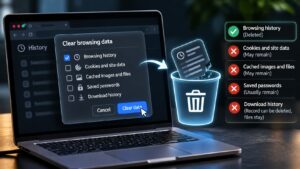
Here’s what happens to different types of information:
- Browsing history: The list of websites and pages you’ve visited is removed from your browser’s history records.
- Cookies and site data: Websites use cookies to remember login sessions, preferences, and sometimes tracking information. These may remain unless you specifically choose to delete them.
- Cached images and files: Browsers temporarily store website images and other files to improve loading speeds. Clearing history alone doesn’t necessarily remove this cache.
- Saved passwords and autofill information: These are usually stored separately and generally remain unless you choose to remove them.
- Download history: You may be able to delete the browser’s record of downloaded files, but this doesn’t delete the actual files saved on your device.
The important thing to understand is that clearing your browsing history doesn’t automatically erase everything associated with your online activity.
Even if you delete cookies, cached files, and browsing records together, information previously collected by websites or online services may still exist on their servers.
That’s why clearing your history and preventing online tracking are two very different things.
How Can Websites Still Track You After You Clear Your History?
You might think that deleting your browsing history gives you a fresh start online. But websites don’t necessarily need access to your browsing history to recognize you.
In fact, many websites use tracking technologies that work independently of the history stored in your browser.
Some methods rely on information saved on your device, while others use details about your browser, internet connection, or online accounts.
Here are three common ways websites may still recognize you after you’ve cleared your history.
1. Cookies and Other Website Data
Have you ever visited an online store, looked at a few products, and returned later to find that the website still remembers your preferences?
Cookies are one reason this happens.
Cookies are small pieces of information that websites store in your browser. They can help keep you logged in, remember language settings, and recognize returning visitors.
Some cookies are also used for advertising and tracking purposes.
If you clear your browsing history without deleting cookies, websites may still recognize your browser when you return.
Even when you remove cookies, websites can create new ones during future visits. However, deleting the original cookies can break the connection to previous visits when that connection depended on those cookies.
2. Browser Fingerprinting
Browser fingerprinting is another method websites can use to recognize visitors, and it doesn’t necessarily require cookies.
When you visit a website, your browser may reveal certain technical details, such as:
- Your browser type and version.
- Your operating system.
- Your screen resolution.
- Your language and time zone settings.
- Certain device and browser capabilities.
Individually, these details might not reveal much. But when combined, they can sometimes create a recognizable pattern known as a browser fingerprint.
Websites and tracking services may use this information to distinguish one browser from another, even when traditional cookies aren’t available.
However, browser fingerprinting isn’t always accurate or unique. Its effectiveness depends on the information available and how similar your browser configuration is to others.
3. Your IP Address and Online Accounts
Every time you connect to a website, the website generally receives the public IP address associated with your connection.
An IP address can provide clues about your approximate location and internet service provider. It may also help websites recognize repeat visits, although IP addresses can change and are often shared by multiple users.
Online accounts provide an even more direct way to connect your activity.
For example, if you’re signed into Google, Facebook, or an online shopping account, the service can associate certain actions with your account rather than relying only on browser history.
Deleting your browsing history doesn’t automatically sign you out or erase information already stored in your account.
The key difference is that your browsing history is stored locally, while websites and online services may maintain their own records of your activity.
That’s why deleting your history can remove evidence of browsing from your device without necessarily preventing websites from recognizing you again.

Can Your Internet Provider Still See Your Activity?
Yes, your internet service provider (ISP) can still see certain information about your internet activity, even after you’ve deleted your browsing history.
Whenever you connect to the internet, your traffic passes through your ISP’s network. Depending on how your connection is configured, your provider may be able to see which services or websites you’re connecting to.
However, that doesn’t mean your ISP can see everything you do online.
Most modern websites use HTTPS encryption, which helps protect information exchanged between your browser and the website. This generally prevents your ISP from reading the contents of pages you visit, messages you send, or passwords you enter through those encrypted connections.
Your provider may still be able to observe information such as:
- IP addresses: The servers your device connects to.
- Domain names: Websites you’re accessing, depending on your DNS settings and other encryption protections.
- Connection details: When connections occur and how much data is transferred.
For example, your ISP might be able to determine that you connected to YouTube, but HTTPS generally prevents it from seeing the specific videos you watched.
And here’s the important part: clearing your browser history doesn’t erase information your ISP may have already collected.
Deleting history only affects records stored by your browser. It doesn’t automatically remove network logs maintained by your internet provider.
This is one reason why clearing your browsing history and protecting your online privacy are not the same thing.
Does Incognito Mode Stop Websites From Tracking You?
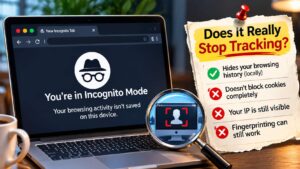
Many people believe that opening an incognito window makes their online activity completely private. Unfortunately, that’s not how it works.
Incognito mode, also called private browsing in browsers like Firefox and Safari, is mainly designed to prevent certain browsing information from being saved on your device after you close the private session.
For example, when you use incognito mode, your browser generally won’t keep your browsing history, search history, or new cookies from that session once all private windows are closed.
However, incognito mode doesn’t make you anonymous on the internet.
Websites can still see your IP address, and some may use browser fingerprinting or other technologies to recognize your browser. If you sign into an account, that service can also associate your activity with your identity.
Your internet service provider may still observe certain connection information, and websites can continue collecting data about your visits.
So, when is incognito mode actually useful?
It’s particularly helpful when you’re using a shared computer, signing into a temporary account, or browsing something you don’t want saved in your regular browser history.
But if your goal is to reduce online tracking, incognito mode alone isn’t enough.
Think of incognito mode as a way to keep your browsing session separate from your regular browser history, not as a tool that makes you invisible online.
What About VPNs and Privacy-Focused Browsers?
If clearing your browsing history and using incognito mode aren’t enough to stop online tracking, what other options do you have?
Two commonly used privacy tools are Virtual Private Networks (VPNs) and privacy-focused browsers. Both can help reduce certain types of tracking, but they work in different ways.
How a VPN Helps Protect Your Privacy
A VPN creates an encrypted connection between your device and a VPN server. Instead of connecting directly to websites, your internet traffic travels through that server.
This means websites generally see the VPN server’s IP address rather than your original public IP address.
A VPN can also prevent your internet provider from directly seeing which websites you visit through the VPN connection, although your provider can still see that you’re connected to a VPN.
However, a VPN doesn’t automatically stop websites from tracking you.
Websites can still recognize you through cookies, browser fingerprinting, or accounts you’re signed into. Your VPN provider may also have access to certain connection information, so choosing a trustworthy service matters.
What About Privacy-Focused Browsers?
Some browsers include features designed to limit online tracking.
For example, Firefox offers Enhanced Tracking Protection, while Brave includes built-in protections against many advertising trackers and fingerprinting techniques.
Tor Browser takes a different approach. It routes your connection through the Tor network and is designed to make tracking and identifying users more difficult.
The Tor network also supports onion websites, which operate differently from regular websites. If you’re curious about how these services work, we’ve also explained why onion websites disappear and sometimes return years later.
However, even Tor Browser cannot guarantee complete anonymity, particularly if you reveal personal information or sign into accounts connected to your identity.
The important thing is understanding what each tool actually protects.
A VPN can help hide your original IP address from websites, while privacy-focused browsers can reduce the amount of information trackers collect.
Using these tools alongside sensible browsing habits can improve your online privacy, but no single tool can completely eliminate online tracking.
Simple Ways to Reduce Online Tracking
You don’t need to be a cybersecurity expert to take better control of your online privacy. A few changes to your everyday browsing habits can make it harder for websites and advertisers to collect information about you.
Here are some practical steps worth considering.
1. Clear Cookies and Website Data Regularly
Deleting your browsing history is a good start, but remember to clear cookies and other site data when necessary.
Most browsers allow you to manage these settings separately. You can also block third-party cookies to limit certain types of cross-site tracking.
Keep in mind that deleting cookies may sign you out of websites and reset saved preferences.
2. Use Your Browser’s Privacy Settings
Modern browsers offer built-in protections against many common tracking methods.
Check your browser’s privacy settings and enable available tracking protections. You can also review which websites have permission to access your location, camera, microphone, and notifications.
3. Be Careful About Staying Logged In
When you’re signed into an online account, the service can often associate your activity with that account.
Consider signing out of services when you no longer need them, especially on shared devices. Remember that signing out doesn’t necessarily erase information the service has already collected.
4. Limit Unnecessary Browser Extensions
Browser extensions can be useful, but some request permission to read or modify information on the websites you visit.
Install extensions from trusted sources, review their permissions, and remove those you no longer use.
5. Keep Your Browser Updated
Browser updates aren’t just about adding new features. They often include security fixes and improvements to privacy protections.
Keeping your browser updated helps protect against known vulnerabilities that could expose your information.
You don’t have to eliminate every form of tracking to improve your privacy. Understanding what information websites collect and making a few thoughtful changes can help you maintain greater control over your online activity.

So, Does Clearing Your History Actually Protect Your Privacy?
The short answer is yes, but only to a certain extent.
Clearing your browsing history helps protect your privacy by removing records of the websites you’ve visited from your browser. This can be useful, especially if you share your computer or device with other people.
However, deleting your history doesn’t erase information that websites, advertisers, or internet providers may have already collected. It also doesn’t automatically prevent websites from recognizing you during future visits.
If you want better online privacy, consider managing your cookies, adjusting your browser’s tracking protections, and being mindful of the information you share online.
Ultimately, protecting your privacy isn’t about clicking one button or using one particular tool. It’s about understanding how online tracking works and making informed choices about your digital activity.
Clearing your history is a useful first step, but it’s only one part of protecting your privacy online.